

What is Proxy Helper? How to install and use Proxy Helper on Chrome
Do you want to change your IP address, protect your identity while browsing the web, or access region-restricted websites without complicated steps? If you’re using the Chrome browser, Proxy Helper is a simple yet extremely effective tool to help you do that. In this article, Muaproxy.net will guide you through what Proxy Helper is, and how to install and use Proxy Helper to change your IP address and access websites safely.
What is Proxy Helper?
Proxy Helper is a browser extension for Chrome. It allows users to set up and manage proxies quickly and conveniently right within the browser, instead of having to go through complicated steps in the system settings.
 This tool supports multiple proxy protocols such as HTTP, HTTPS, and SOCKS, allowing data to be routed through a proxy server to hide the user’s real IP address. As a result, Proxy Helper helps improve browsing speed, enhance information security, and enable access to region-restricted content.
Outstanding Features of Proxy Helper
Proxy Helper offers a variety of useful features that help optimize your online experience. Below are the key highlights of this tool:
-
Increase network speed: Proxy Helper can temporarily store cached data and forward requests through a proxy server, reducing the load on direct connections. This allows users to access websites faster, especially in crowded or unstable network environments.
-
Protect personal information: When browsing the internet via Proxy Helper, data is encrypted and routed through an intermediary server. This helps minimize the risk of tracking, personal data leaks, or attacks from malicious software.
-
Bypass geo-restricted content: Proxy Helper supports changing IP addresses by country, allowing users to easily access content restricted by geographic location.
-
Efficient bandwidth management: Proxy Helper can adjust data traffic, optimizing network resources for important tasks without affecting other online activities.

Advantages and Disadvantages of Proxy Helper
Proxy Helper is a useful extension, especially for users who need flexibility when accessing the internet. However, alongside its clear advantages, the tool also has a few limitations that users should consider.
Advantages
-
Protect online identity: Proxy Helper helps hide your real IP address, reducing the risk of being tracked and enhancing privacy while browsing the web.
-
Access unlimited content: With its IP-changing capability, this tool allows users to bypass geographic restrictions and access websites blocked in their country or region.
-
Improve browsing speed: Using a proxy server can enhance page loading speed, especially for frequently visited websites, thanks to its caching feature.
-
User-friendly interface: Proxy Helper has a simple, intuitive design that’s easy to use even for those who have never configured a proxy before, allowing quick setup without requiring technical expertise.
How to Install Proxy Helper on Your Computer
Installing Proxy Helper on the Google Chrome browser is very simple. Just follow these steps:
Step 1: Open the Google Chrome browser on your computer.
Step 2: In the search bar, type Proxy Helper and press Enter. Look for the extension named Proxy Helper with its distinctive icon, then click the Add to Chrome button.
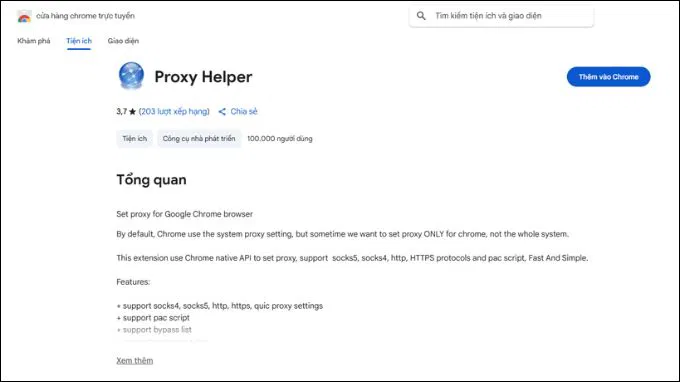
Step 3: A pop-up window will appear asking if you want to add the extension. Click Add extension to confirm.
After a few seconds, Chrome will automatically install Proxy Helper. The extension’s icon will appear on the toolbar (at the top right corner of the browser). If you don’t see it, click on the puzzle-shaped Extensions icon, then pin Proxy Helper for easier access.
How to Use Proxy Helper to Change IP
Once Proxy Helper has been successfully installed, follow these steps to use it and access websites without restrictions:
Step 1: Click the Proxy Helper icon on Chrome’s toolbar (top right corner).
A configuration interface will appear with fields for entering proxy information.
Step 2: In the Proxy section, enter the IP address and Port you received from your proxy provider.
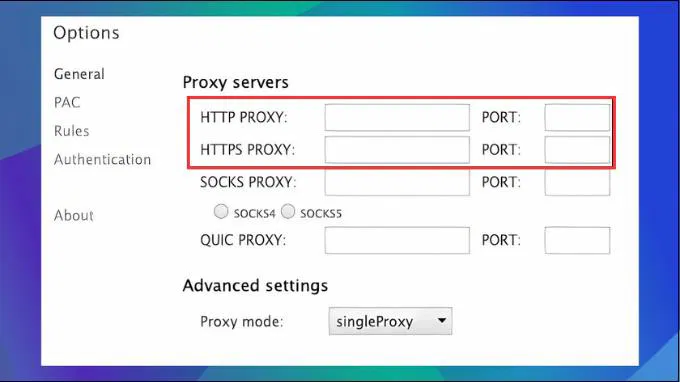
Step 3: Configure the proxy to work with the HTTPS protocol.
Some proxies may support HTTP or SOCKS, but HTTPS is the optimal choice for better security.
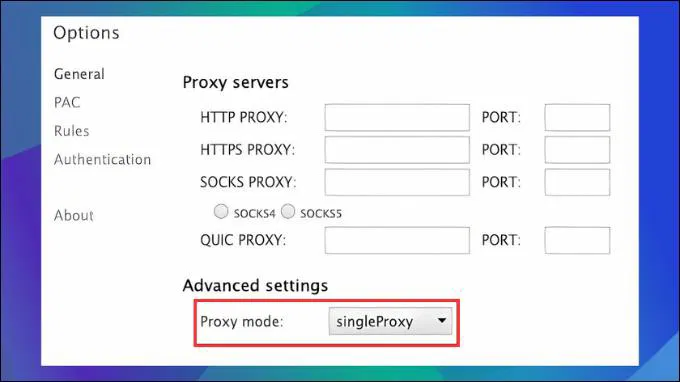
Step 4: If the proxy you’re using requires login credentials, go to the Authentication section.
Enter the Username and Password provided by your proxy service.
Notes When Using Proxy Helper to Access Blocked Websites
Using Proxy Helper makes it easy to access websites restricted by region. However, to ensure safety and efficiency during use, you should keep the following in mind:
-
Use proxies from reputable providers to avoid the risk of data exploitation.
-
Check the proxy server’s speed before use to ensure a stable connection.
-
Update Proxy Helper regularly to take advantage of new features and improved security.
-
Avoid using free proxies from unknown sources, as they may pose security risks.
-
Make sure to enter the correct IP, Port, and Authentication details to prevent connection errors.